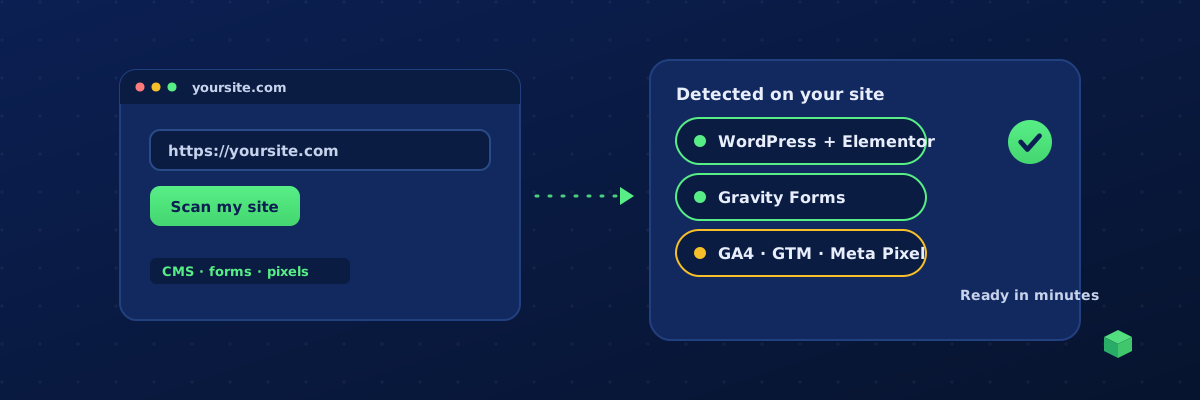
Yes. Tools exist that set up website tracking for you in minutes rather than hours. The best of them read your actual site, work out what can be tracked, and put the finished tags into Google Tag Manager for you to review and publish. This guide explains what "easy" should mean, the four ways people set up tracking today, and where each one breaks.
What "easy" should actually mean
Most tools that promise easy tracking make one thing easy: installing a snippet. That is not the hard part. The hard part is everything that comes after:
- Knowing which element to track. Your "Book a call" button is a link on one page, a form on another and a Calendly embed on a third.
- Writing the trigger correctly. A form built with Gravity Forms fires a different success signal from Contact Form 7, HubSpot or a Webflow form.
- Naming the event the way each platform wants. GA4 wants
generate_lead, Meta wantsLead, Google Ads wants a conversion action with an ID and a label. - Testing without breaking anything. Publishing an untested container can double-count purchases or stop them entirely.
- Noticing when it breaks later. A theme update or a checkout change silently kills tracking, and nobody finds out until a campaign report makes no sense.
A tool is only easy if it handles those five, not just the snippet.
The four ways people set up tracking
| Approach | Time for a first setup | Skill needed | Works on any platform? | What breaks later |
|---|---|---|---|---|
| Manual GTM setup | Half a day to a day | Comfortable with selectors, triggers and Preview mode | Yes | Everything, silently, on the next site change |
| Platform plugin or app (WordPress plugin, Shopify app) | An hour | Low | No, one platform only | Plugin conflicts, app updates, limited events |
| Freelancer or consultant | Days of lead time, a few hours of work | None, but you cannot change anything yourself | Yes | The same things, plus you pay again to fix them |
| Scanning generator (TrackingCoder) | Minutes | Low: pick events, review, publish | Yes | Monitoring catches it if you use the Pro layer |
Why the snippet is not the problem
Google Tag Manager, GA4, the Meta Pixel and Google Ads all install with a copy-paste. Every platform has a field for it, and our GTM for beginners guide covers the installs. If page views were all you needed, you would be done in ten minutes.
Conversion tracking is different because it depends on your site. The button you care about has a class name nobody wrote down. Your form plugin signals success in its own way. Your checkout confirmation page exposes the order total in one place and the order ID in another. Generic tutorials cannot know any of that, which is why the GA4 event tracking guide spends most of its length on triggers, not tags.
What a scanning tool does differently
A scanning tool starts from your site rather than from a template:
- Scan. You paste a URL. The tool loads the page like a browser and detects the CMS, page builder, form plugins, e-commerce platform, and the tracking IDs already present (GA4, GTM, Meta Pixel).
- Pick. You choose what to track from a list of events that make sense for that site: button clicks, form submissions, phone clicks, add to cart, purchase, bookings and so on.
- Place. The tool generates the tags, triggers and variables with the right selectors and the right event name for each channel, then adds them to your GTM workspace. You test in Preview and publish.
The result is the same container a good freelancer would build, produced in minutes, and reproducible the next time the site changes.
When you do not need a tool
Be honest about scope. If you run a brochure site, do no paid advertising and only want to know how many people visit, install GA4 directly and stop there. You can add a privacy-friendly analytics tool instead if you prefer, and we compare those in Is there an easier alternative to Google Analytics?. Tools earn their place the moment you run ads, sell online, or need to know which button, form or call actually produced a lead.
Where TrackingCoder fits
TrackingCoder is the scanning generator in the table above. Paste your URL, it detects your stack and existing IDs, you pick from 450+ events across GA4, Meta, Google Ads, LinkedIn and Microsoft Ads, and one click places every tag, trigger and variable in your Google Tag Manager workspace. The integration is verified by Google. Nothing goes live until you publish. Every account gets 5 free credits a month and no card, andTC Pro adds monitoring so you know the moment an event stops firing. You can also check what any site is already running with the free tracking detector.