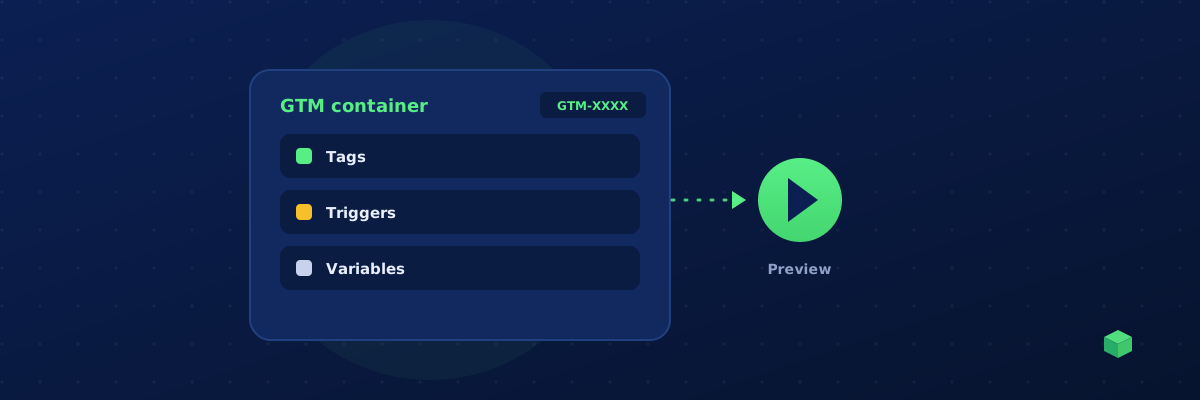
Google Tag Manager (GTM) is a free tool that lets you add and manage tracking code on your website without editing the site's source code every time. Think of it as a container - you install it once on your website, and then you can add, edit, and remove tracking scripts from the GTM dashboard without touching your site again.
Why Use GTM Instead of Direct Code?
Without GTM, every time you want to track something new - a form submission, a button click, a purchase - you or your developer needs to edit the website's HTML, add the tracking code, test it, and deploy it. This can take days if you need to go through a development cycle.
With GTM, you add the tracking code as a "tag" in the GTM dashboard, define when it should fire (a "trigger"), test it in Preview mode, and publish it - all in minutes, with no website deployments needed.
For marketers, this is transformative. You can set up conversion tracking for a new Google Ads campaign in 10 minutes instead of waiting a week for your developer to deploy the code. For developers, GTM reduces the constant stream of "can you add this tracking script" requests.
Setting Up GTM
Go to tagmanager.google.com and create an account. Enter your company name and website URL, select "Web" as the target platform, and accept the terms. Google will give you a Container ID (like GTM-XXXXXXX) and two code snippets.
The first snippet goes in your website's <head> section. The second goes right after the opening <body> tag. That's the only time you need to touch your website's code - everything after this is managed through the GTM dashboard.
On WordPress, the easiest installation method is the WPCode plugin: go to WPCode → Header & Footer, paste the head snippet in "Header" and the body snippet in "Body" - our WordPress tracking guide has the full walkthrough. On Shopify, go to Online Store → Themes → Edit Code → theme.liquid - covered in the Shopify tracking guide. On Wix, use Settings → Custom Code - the Wix tracking guide explains what's supported on each plan.
If you're a beginner and your site doesn't have GA4 or GTM installed yet, TrackingCoder offers a free Foundation Setup flow that generates the exact installation code for your CMS and walks you through where to paste it.
Tags, Triggers, and Variables
Tags are the tracking scripts you want to run - a GA4 event, a Meta Pixel event, a Google Ads conversion, or a custom HTML script.
Triggers define when a tag should fire. Common triggers include "All Pages" (fires on every page load), "Click" (fires when a user clicks something), "Form Submission" (fires when a form is submitted), and "Custom Event" (fires when custom JavaScript code pushes an event to the dataLayer).
Variables are dynamic values used in tags and triggers, like the current page URL, the text of a clicked button, or a transaction value.
The Custom HTML Tag
For conversion tracking code generated by tools like TrackingCoder, the most common approach is to use a Custom HTML tag. This lets you paste any JavaScript code and have GTM execute it based on your chosen trigger.
Steps: Tags → New → Tag Configuration → Custom HTML → paste your code → Triggering → choose "All Pages" (or a more specific trigger) → Save → Submit → Publish.
Preview Mode: Test Before You Publish
GTM's Preview mode is your best friend. Click "Preview" in the top right, enter your website URL, and GTM opens your site with a debug panel showing every tag that fires, every trigger that activates, and every variable value. This lets you verify that your tracking works correctly before publishing to the live site.
Always use Preview mode before publishing. A tracking tag that fires on the wrong page or at the wrong time can corrupt your analytics data and waste your ad budget.
GTM + TrackingCoder
When you generate tracking code with TrackingCoder, you get three output options: Direct Script (paste into your site's header), GTM Custom HTML (paste as a tag in GTM), and GTM Container JSON (import directly into GTM). For most users, the GTM Custom HTML method is recommended - it's the fastest to implement and the easiest to manage going forward.