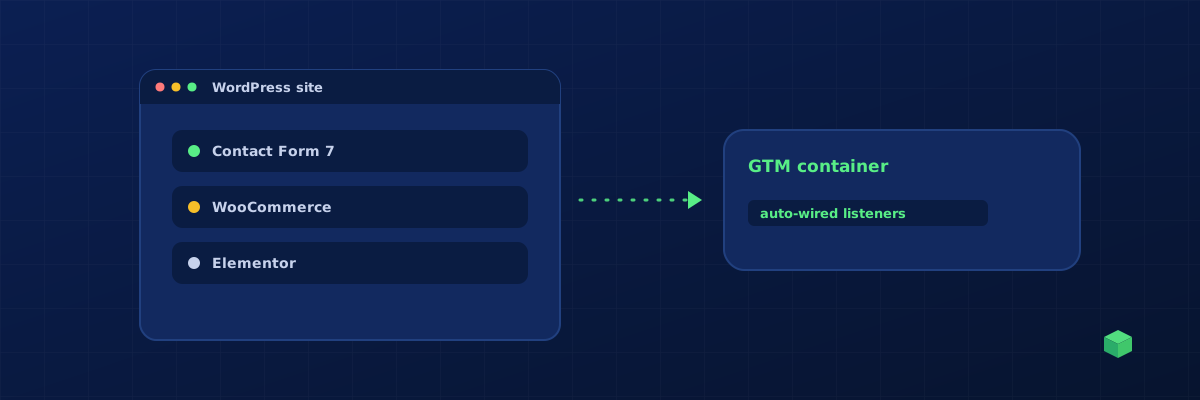
WordPress powers over 40% of all websites, which means a huge number of businesses need tracking set up on WordPress. The challenge? WordPress's plugin ecosystem means every site is different. The tracking code for a site running Contact Form 7 on Elementor is completely different from one running Gravity Forms on Divi.
Understanding Your WordPress Stack
Before writing any tracking code, you need to know exactly what your site is running. The key components that affect tracking are your page builder (Elementor, Divi, WPBakery, Gutenberg), your form plugin (Contact Form 7, WPForms, Gravity Forms, Ninja Forms, Fluent Forms), and if applicable, your e-commerce plugin (WooCommerce, Easy Digital Downloads).
Each combination requires different listener code. This is why generic "WordPress tracking" tutorials often don't work - they're written for one specific stack and silently fail on others.
Form Submission Tracking
Contact Form 7 fires a custom DOM event called wpcf7mailsent when a form is successfully submitted. This is the most reliable way to track CF7 - don't use a generic form submit listener, because CF7 uses AJAX and the form element's submit event fires before validation. For the full GA4 setup around form submissions, see tracking form submissions in GA4.
WPForms uses jQuery events. Listen for wpformsAjaxSubmitSuccess on the document object. This fires after the form data is sent and the server responds with success.
Gravity Forms has gform_confirmation_loaded for AJAX submissions and a redirect-based flow for non-AJAX forms. The AJAX event is more reliable for tracking because you don't lose the event data during a page redirect.
Elementor Pro Forms fire a submit_success event on the form element. Since Elementor forms always use AJAX, this event reliably indicates a successful submission.
Button Click Tracking
Button click tracking depends heavily on your page builder. Elementor buttons use the class .elementor-button. Divi uses .et_pb_button. WPBakery uses .vc_btn3. Gutenberg uses .wp-block-button__link. Walk through it in the track button clicks in GA4 guide - it covers each builder's selector pattern.
The best approach is to use event delegation on the document and filter by the button's text content or section of the page. This is more reliable than targeting specific CSS classes, which can change when themes or builders are updated.
WooCommerce Purchase Tracking
WooCommerce purchase tracking is essential for any online store running ads. The standard approach is to detect the order-received page (WooCommerce's thank-you page) and parse the order details from the page DOM. Our e-commerce purchase tracking guide covers the full setup, including how to feed the data to Meta and Google Ads at the same time.
You need to capture: transaction ID, order total, currency, and ideally the individual line items. WooCommerce makes this data available on the confirmation page, but extracting it requires knowing the right DOM selectors - which vary between themes.
The Easier Way
TrackingCoder was built specifically for this problem. Enter your WordPress site URL and it automatically detects your page builder, form plugins, and e-commerce setup. Then it generates the exact listener code for your specific combination - no more adapting generic tutorials to your stack. The generated code handles all the edge cases that trip up manual implementations: AJAX forms, builder-specific selectors, and plugin-specific events.
Installing Tracking Code on WordPress
Once you have your tracking code, the easiest way to add it to WordPress is through the WPCode plugin (formerly Insert Headers and Footers). Install the plugin, go to WPCode → Header & Footer, and paste your code in the Header section. This is safer than editing theme files directly, because your code won't be lost when you update your theme.
If you're using Google Tag Manager (which we recommend), create a Custom HTML tag in GTM and paste the code there. Set the trigger to "All Pages" and publish your container. GTM gives you the added benefit of being able to test with Preview mode before going live.