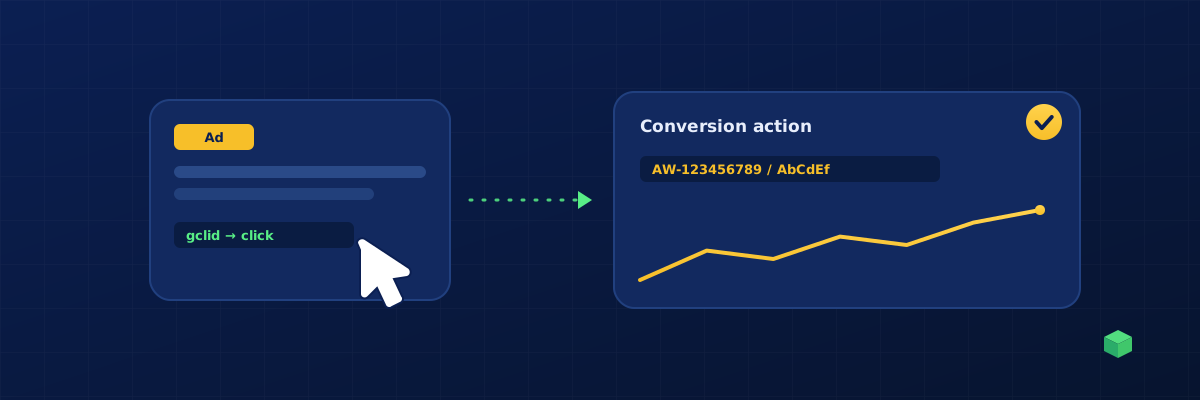
Google Ads conversion tracking tells Google which ad clicks lead to valuable customer actions on your website. Without it, you're essentially paying for clicks and hoping for the best. With it, Google's Smart Bidding algorithms can automatically optimise your bids to get more conversions at a lower cost.
How Google Ads Conversion Tracking Works
Unlike GA4 (which uses the gtag measurement protocol), Google Ads conversion tracking uses a specific conversion action format. You create a conversion action in your Google Ads account, which gives you a Conversion ID (like AW-123456789) and a Conversion Label (like AbCdEfGhIjKl).
When a user completes the desired action on your site, your tracking code fires gtag('event', 'conversion', { send_to: 'AW-123456789/AbCdEfGhIjKl' }). This sends the conversion data back to Google Ads, linking it to the specific ad click that brought the user to your site.
Setting Up Conversion Actions
In your Google Ads account, go to Goals → Conversions → New conversion action → Website. Google will ask you for your website URL and suggest some automatic conversion tracking options. For most businesses, the automatic options aren't specific enough - you'll want to create manual conversion actions for the exact events that matter.
For lead generation: Create a "Submit lead form" conversion action. For e-commerce: Create separate actions for "Purchase", "Add to cart", and "Begin checkout". For service businesses: Create "Phone call" and "Contact form" actions.
The CMS Challenge
Here's where it gets complicated. The conversion code needs to fire at the exact right moment - when a form is successfully submitted, when an order is confirmed, when a booking is completed. Every CMS handles these moments differently.
On WordPress with WooCommerce, purchase tracking requires reading order data from the order-received page - see the WordPress tracking guide for the exact DOM selectors. On Shopify, you use the Shopify.checkout object on the thank-you page - the Shopify tracking guide walks through both legacy and OS 2.0 checkout flows. On Wix, you use Velo code or the built-in tracking integration - the Wix tracking guide explains what's possible on each plan. Each platform has its own quirks and gotchas.
This is where spending hours on implementation makes or breaks your campaign performance. Get it wrong and Google is optimising for the wrong signal. Get it right and your cost per conversion can drop significantly within the first few weeks.
TrackingCoder generates platform-specific conversion code that accounts for these differences. Select your scenario (form submission, purchase, button click), choose Google Ads as your channel, enter your Conversion ID and Label, and you get code that's tailored to your exact CMS and plugin stack. No more adapting generic code snippets from Google's documentation to your specific setup.
Enhanced Conversions
Google's Enhanced Conversions feature sends hashed first-party customer data (email, phone, name) alongside the conversion tag. This helps Google match conversions more accurately, especially in a world of cookie restrictions and privacy changes.
If you're already tracking basic conversions well, Enhanced Conversions is the next step to improve your data quality and attribution accuracy. It typically improves conversion measurement by 5-15%.
Testing Your Conversions
In Google Ads, go to Goals → Conversions and check the Status column. "Recording conversions" means it's working. "No recent conversions" means either no one has converted yet or the tracking isn't firing. Use Google Tag Assistant to debug the tag firing on your website.