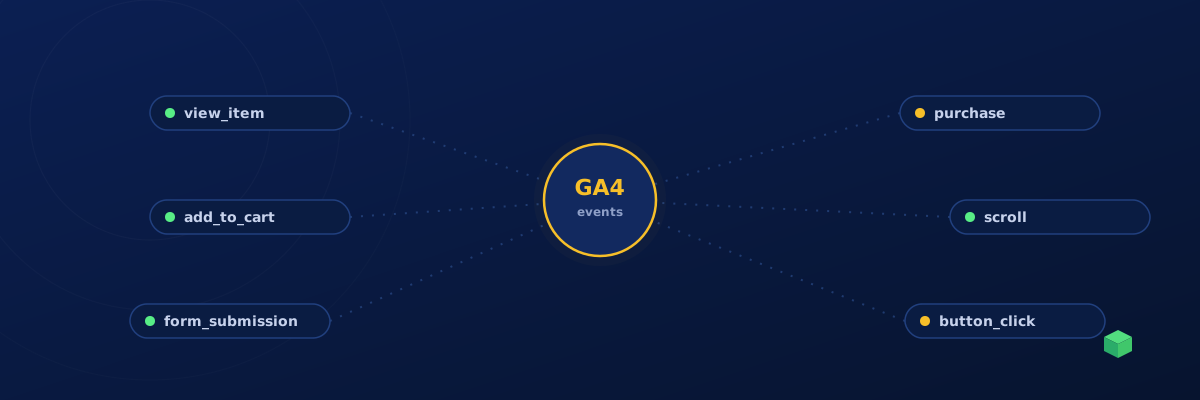
Google Analytics 4 changed everything about how we track user behaviour. Gone are the old "goals" and "events" from Universal Analytics - GA4 uses a completely event-based data model where every interaction is an event.
That sounds simple, but in practice it means you need to actively tell GA4 what to track. Out of the box, GA4 captures page views, scrolls, outbound clicks, site search, video engagement, and file downloads through Enhanced Measurement. But the events that actually matter to your business - form submissions, CTA clicks, add-to-cart actions, purchases - need to be set up manually.
What Are Custom Events in GA4?
Custom events are user interactions that you define and send to GA4 using the gtag('event', ...) function or through Google Tag Manager. Unlike Enhanced Measurement events, these don't happen automatically - you need code on your website that fires them at the right moment.
A custom event has three parts: an event name (like form_submission), parameters (like form_name, page_url), and a trigger (the code that detects when the action happens).
GA4 Recommended Event Names
Google provides a list of recommended event names for common actions. Using these names isn't required, but it's strongly advised - GA4's built-in reports and machine learning features work better when you use standard names.
For lead generation sites, the key events are generate_lead, form_submission, and sign_up - see our guide to tracking form submissions in GA4 for a concrete setup. For e-commerce, use view_item, add_to_cart, begin_checkout, and purchase - we cover the full cart flow in tracking add-to-cart in GA4 and tracking e-commerce purchases. These map directly to GA4's monetisation reports and Google Ads conversion bidding.
The Hard Part: Writing the Trigger Code
This is where most marketers hit a wall. Detecting a form submission on a WordPress site running Contact Form 7 requires different code than detecting one on a Shopify site - we go deep on both in the WordPress tracking guide and the Shopify tracking guide. An Elementor button click needs different selectors than a Divi button click - the button-click tracking guide covers the differences. WooCommerce purchase tracking requires parsing the order confirmation page DOM.
The code itself isn't complex - usually 10-30 lines of JavaScript. But knowing which 10-30 lines to write for your specific stack is the challenge. A developer who's done it before can write it in minutes. A marketer Googling it will spend hours and likely end up with code that half-works.
This is exactly the problem TrackingCoder solves. You enter your website URL, it detects your CMS, page builder, and form plugins, then generates the exact JavaScript listener code for your specific setup. A form submission listener for Contact Form 7 is different from one for WPForms or Gravity Forms - TrackingCoder knows the difference and generates accordingly.
Testing Your Events
After implementing your tracking code, verify it's working in GA4's Realtime report (Reports → Realtime). Trigger the event on your website - submit the form, click the button, complete the purchase - and it should appear within 30 seconds.
If you're using Google Tag Manager, use Preview mode first. This lets you see exactly which tags fire on each page and what data they send, before publishing your changes to the live site. If you're new to GTM, start with our Google Tag Manager for beginners guide - it'll save you hours.
Standard reports in GA4 can take 24-48 hours to populate, so don't panic if your event shows in Realtime but not in the Events report immediately.
Common Mistakes to Avoid
The most common mistake is tracking the wrong moment. For form submissions, you need to fire the event on successful submission, not on the submit button click. If the form has validation errors, clicking submit shouldn't count as a conversion. Plugin-specific listeners (like Contact Form 7's wpcf7mailsent event) handle this correctly - generic form submit listeners don't.
Another common mistake is using event names with spaces or capital letters. GA4 event names should be snake_case - lowercase with underscores. Form Submission won't cause an error, but it creates a separate event from form_submission and makes your data messy.