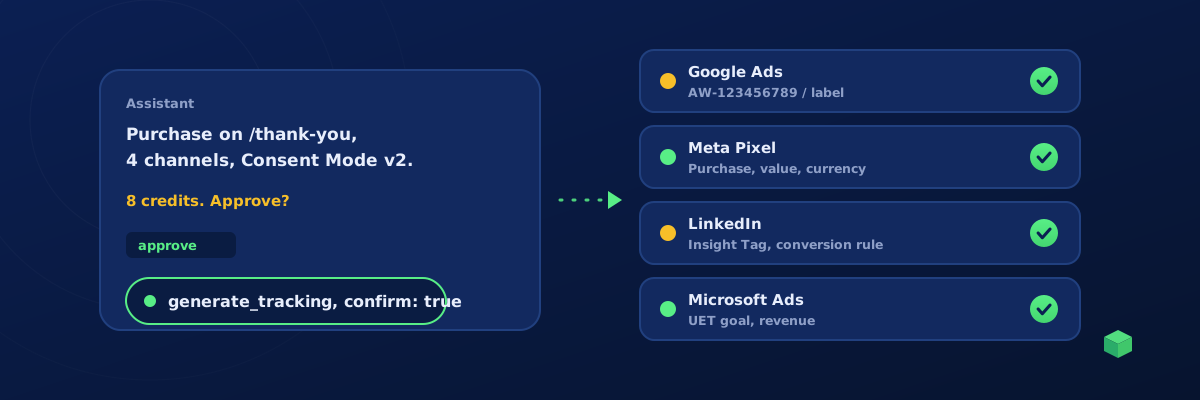
Yes, an AI assistant can set up ad conversion tracking end to end, apart from the two things you should keep: deciding what a conversion is, and pressing Publish. Connect Claude, Codex, Cursor or VS Code to TrackingCoder's MCP server, hand it the IDs, approve one generation per platform, and import what it produces. This guide covers the IDs, the prompts, Consent Mode v2, and how to prove each platform received the event.
Step 1: decide what a conversion is
Bidding algorithms work best on one or two clean signals. For a shop it is the purchase, with its value and a transaction ID so refunds and duplicates can be matched. For a service business it is the lead: a form submission, a phone click, or a booking completed. Micro-conversions (scroll depth, time on page) belong in GA4, not in the ad platforms. The conversion tracking guide goes deeper on choosing.
Step 2: collect the IDs
| Platform | What you need | Where it is |
|---|---|---|
| Google Ads | Conversion ID (AW-…) and conversion label | Goals, Conversions, the conversion action, Tag setup, Use Google Tag Manager |
| Meta | Pixel (dataset) ID | Events Manager, Data sources |
| Partner ID, and the conversion ID of the conversion rule | Campaign Manager, Analyze, Insight Tag and Conversion tracking | |
| Microsoft Ads | UET tag ID | Tools, UET tag |
| GA4 | Measurement ID (G-…) | Admin, Data streams |
Create the conversion action in Google Ads and the conversion rule in LinkedIn first; the IDs only exist once the action does. The Google Ads guide and the Meta guide show each platform's screens.
Step 3: connect the assistant
On a paid TC Pro plan, create a key under Account, API keys and add the server to your assistant. The setup is a command or a config entry, covered per tool in the Claude guide, the Codex guide and the Cursor and VS Code guide. The server URL is https://trackingcoder.com/api/mcp, authenticated with the key as a bearer token.
Step 4: scan
Scan https://example.com with TrackingCoder. I want to track purchases on Google Ads, Meta, LinkedIn and Microsoft Ads.
The scan finds the platform and checkout (Shopify, WooCommerce, a custom cart), the confirmation page pattern, the pixels already installed, and returns a scanId. It also tells you if a Meta Pixel or UET tag is already on the site, which matters: the generated container adds the conversion event, and the base pixel should exist exactly once.
Step 5: generate per channel, with Consent Mode v2
One generation per channel, each with its own ID. The assistant must state the scenario, channel, ID and cost and wait for your approval before calling generate_tracking with confirm: true; without the flag the server refuses.
Generate Purchase for Google Ads AW-123456789 with label AbCdEfGhIj, for Meta pixel 1234567890, for LinkedIn partner 987654 conversion 1122334, and for Microsoft UET 56789012. Container format, Consent Mode v2 on all of them. Quote the total first.
Expect "4 generations at 2 credits each, 8 credits total, balance 10. Go ahead?" Say yes. Each result carries the value and transaction ID mapping for that platform: value and transaction_id for Google Ads, value, currency and content_ids for Meta, the conversion value for LinkedIn, the revenue variable for UET. Each also carries a generationId for the push in the next step.
Consent Mode v2 is the extra credit worth paying in Europe and the UK. It sets the default consent state to denied before any tag fires and updates it after the banner, which Google requires for ads measurement there and which keeps the other platforms' tags from firing early. The free Consent Checker shows what your site does today, and the Consent Mode v2 guide explains the settings.
Step 6: push to GTM, preview, publish
Push all four to the Production workspace of GTM-ABC1234.
With Google connected once in the TrackingCoder app, the assistant calls push_to_gtm for each generation after you approve the target, and the tags, triggers and variables land in the workspace as unpublished changes. Without the connection, ask for the container files and import each with Merge and Rename conflicting. Either way, open Preview and complete one real test conversion (a cheap product, a test lead). In the Preview panel every conversion tag should fire exactly once on the confirmation step, with the value present. Then publish. Double-firing is the failure that costs most, because a platform that sees two purchases per order bids as if your margins were double.
Step 7: verify in each platform
- Google Ads: the conversion action moves from Unverified to Recording conversions. This can take a few hours. Google Tag Assistant shows the hit immediately.
- Meta: Events Manager, Test Events, shows Purchase with its parameters within seconds. Check the Event Match Quality later.
- LinkedIn: the Insight Tag shows as verified and the conversion rule shows recent activity after the first fire.
- Microsoft Ads: the UET Tag Helper extension shows the goal and revenue on the confirmation page; the tag status updates in the account within a day.
- GA4: DebugView shows the event while Preview is open; Realtime shows it on the live site.
What the assistant cannot do
It cannot publish a GTM version, create the conversion action in Google Ads or the rule in LinkedIn, buy credits, or touch your billing, keys or team. Those stay with you, in GTM, in the app or in the ad platform, which is where the judgement calls live. Once the site is monitored with TC Pro, it can tell you how the conversions are performing ("how many purchases this week, from which sources?") and export the client report as a link.
Costs
Scans and diagnostics are free, and so are pushes, monitoring questions and reports. A conversion event is usually 1 credit per channel, plus 1 for Consent Mode v2, so four platforms with consent is 8 credits. TC Pro includes 10 credits a month and 15% off packs. Keys are capped at 50 generations and 30 pushes a day and every call is logged, so a mistake is visible and bounded.
Where TrackingCoder fits
TrackingCoder is what makes the assistant competent at this: it knows how a purchase should be wired on each platform, with the right event names, parameters and triggers for your checkout, and it writes the GTM configuration for your site. Use it through the app with 5 free credits a month, or through Claude, Codex, Cursor and VS Code with TC Pro.