Google rolled out Consent Mode v2 as a required configuration for advertisers serving EEA and UK visitors in March 2024. Since then, every CMP vendor has shipped an update, every marketing blog has published a "what is Consent Mode v2" piece, and most marketers we talk to still aren't sure what their setup actually does in practice.
This is a practical guide. We'll skip the regulatory backstory and go straight to: what does Consent Mode v2 do to the tags on your website, which ones respect it automatically, which ones don't, and what's the one configuration mistake that silently breaks tracking for half your visitors?
The 30-second version
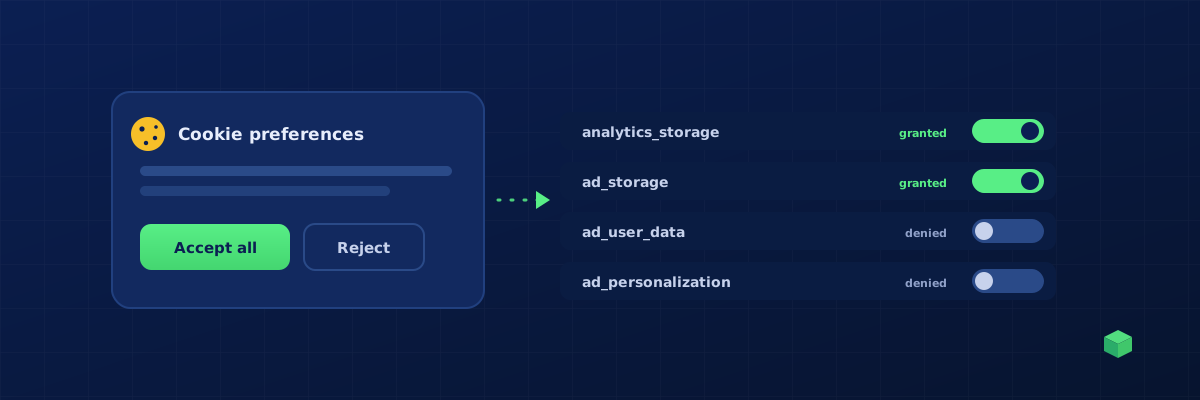
Consent Mode v2 is a protocol - a shared agreement - between your cookie banner and the tags on your site about what each visitor has consented to. Your cookie banner (the CMP) updates four signals when the visitor clicks Accept or Reject:
ad_storage- can we store advertising cookies?ad_user_data- can we send identifying user data to ad platforms?ad_personalization- can we use this data for personalised ads?analytics_storage- can we store analytics cookies?
Each signal is either granted or denied. Tags read these signals and decide what to do - drop a cookie, send an event, fall back to cookieless mode, or stay silent entirely.
How Consent Mode actually works on a page
The protocol uses two function calls. The first runs before any tag loads:
gtag('consent', 'default', {
  ad_storage: 'denied',
  ad_user_data: 'denied',
  ad_personalization: 'denied',
  analytics_storage: 'denied',
  wait_for_update: 500
});
This sets the visitor's starting state - denied by default in EEA/UK. The wait_for_update: 500 tells tags to hold for up to 500 milliseconds in case the CMP is about to update the signals (typical when a returning visitor's cookie banner has remembered their previous Accept).
The second runs when the visitor clicks Accept on your cookie banner:
gtag('consent', 'update', {
  ad_storage: 'granted',
  ad_user_data: 'granted',
  ad_personalization: 'granted',
  analytics_storage: 'granted'
});
Tags that were waiting now fire normally. Tags that were already running (in cookieless mode) switch to full mode.
Your CMP (Cookiebot, OneTrust, CookieYes, Iubenda, Termly, Osano, Klaro, etc.) is responsible for emitting both calls - the default before Google Tag Manager loads, and the update after the visitor's choice. If your CMP isn't doing this, Consent Mode v2 isn't really running on your site, even if you "have a cookie banner".
Basic mode vs Advanced mode - which one are you on?
Basic mode blocks the Google Tag from loading at all until the visitor consents. The customer measures nothing about deniers - they don't appear in GA4, they don't appear in Google Ads, they're invisible. Simple to reason about, easy to defend in a compliance review, expensive in measurement loss.
Advanced mode loads the Google Tag immediately and lets it send anonymous "cookieless pings" while consent is denied. These pings contain no identifying data - no client_id, no IP-linked session - but they feed Google's behaviour modelling algorithm, which estimates the conversion rate and ad-driven traffic of denied-consent visitors and reports them in GA4 and Google Ads as modelled data.
For advertisers running performance campaigns, Advanced mode is the right default. You retain conversion measurement at scale, and modelled data is what Smart Bidding optimises against. Basic mode is appropriate only if your legal team has insisted on it or your CMP doesn't support Advanced.
Which of your tags respect Consent Mode automatically?
This is where most marketers get tripped up. Only Google's own tags respect Consent Mode signals automatically. Every other tag fires fully unless you explicitly gate it inside Google Tag Manager.
Specifically:
- GA4 (Google Analytics 4) - respects
analytics_storageautomatically. When denied, it sends cookieless pings (Advanced mode) or doesn't fire at all (Basic mode). - Google Ads conversion tracking - respects
ad_storage+ad_user_data+ad_personalizationautomatically. Falls back to cookieless conversion modelling when denied. - Floodlight / DV360 - respects ad signals automatically.
- Meta Pixel - does NOT respect Consent Mode automatically. Fires every time it's triggered regardless of consent state.
- LinkedIn Insight Tag - does NOT respect Consent Mode automatically.
- Microsoft UET - does NOT respect Consent Mode automatically.
- TikTok Pixel, Pinterest Tag, Snap Pixel, etc. - do NOT respect Consent Mode automatically.
The pattern is clear: Google's first-party tags handle this for you; everyone else's don't. If you're running Meta Ads or LinkedIn ads - which most B2B and DTC brands do - you have a Consent Mode gap unless you've explicitly closed it.
The fix: tag-level consent gating in GTM
For every non-Google tag, GTM lets you set tag-level consent requirements. Open the tag → Advanced Settings → Consent Settings → Require additional consent for tag firing → add the consent types the tag needs.
For Meta, LinkedIn, MS UET, TikTok, and other ad-platform tags, that's ad_storage + ad_user_data + ad_personalization. Once set, GTM will hold the tag until those signals are granted. Before consent: tag never fires. After consent: tag fires normally.
This is the single most impactful step you can take. Without it, your Meta Pixel is dropping cookies on visitors who explicitly refused - a clear GDPR violation regardless of how careful the rest of your setup is. With it, your Meta Pixel respects the same consent state as your GA4 tag.
The CMP integration question
Consent Mode v2 only works if your CMP is wired up correctly. Symptoms of a broken CMP integration:
- The CMP shows the banner and remembers the user's choice, but Google Ads still reports zero conversions from deniers (should be modelled, not zero).
- GA4 doesn't show any "Consent Mode behavioural modelling" message in its consent diagnostics.
- Real-time consent-state inspection (open DevTools → Console → run
google_tag_data.ics.entries) shows all signals asundefinedrather thangranted/denied.
To check whether your CMP is integrated:
- Open your site in an incognito tab.
- Open DevTools → Console.
- Type
google_tag_data.ics.entriesand press Enter. - Before consent: you should see all four signals with
default: 'denied'(or'granted'if you're outside EEA/UK). - Click Accept on your cookie banner.
- Re-run the same command. You should now see the signals updated to
'granted'with a non-nullupdatetimestamp.
If step 4 shows undefined values, your CMP isn't emitting the default call. If step 6 shows the same values as step 4, your CMP isn't emitting the update call. Most CMPs have a setting called "Google Consent Mode v2 integration" or similar - it's usually off by default and has to be flipped on explicitly.
Common mistakes
Loading the CMP AFTER Google Tag Manager. The CMP must run before GTM so the default consent state is set before any tag fires. If GTM loads first, tags evaluate against an empty consent state, which Google Tag treats as denied - but other tags treat as unrestricted. Mixed results.
Forgetting the update call. Some homebrew banners set a cookie when the user accepts but never call gtag('consent', 'update', ...). Cookies get set; consent signals stay denied; Google modelling kicks in even though the user did accept. Symptom: GA4 traffic looks suspiciously low.
Granting only analytics_storage when the user accepts marketing cookies. Some banners conflate categories. If your "Marketing cookies: Accept" toggle only grants analytics_storage, your ad tags are stuck in denial mode and conversion tracking returns nothing.
Mixed signals: granting some and not others. If your CMP grants ad_storage but not ad_user_data, Google Ads conversions are crippled - both signals are required. Always grant ad_storage + ad_user_data + ad_personalization together for marketing cookies.
How TrackingCoder fits in
When you generate a tracking container with TrackingCoder, the tags fire as configured by your existing GTM + CMP setup. We don't apply tag-level consent gating in the container by default - for the majority of our customers, the Google tags self-throttle correctly and the customer's CMP handles the rest.
If you're serving EEA/UK visitors and want tag-level consent gating baked in (the "Require additional consent for tag firing" setting on each tag), the cleanest path today is to apply it in your own GTM workspace after import - one click per tag, with the consent types we list above. We're working on a built-in option to do this at generation time; it's temporarily disabled while we verify the exact container-export format GTM accepts.
Where to go next
If you're setting up tracking from scratch, the order to do things in:
- Install a CMP (Cookiebot, CookieYes, OneTrust all have free or low-cost tiers).
- Enable the CMP's "Google Consent Mode v2 integration" setting.
- Verify with the DevTools check above before doing anything else.
- Install Google Tag Manager - see our GTM beginners guide.
- Add your tracking tags - generate them with TrackingCoder and add them to GTM in one click (manual container import also available).
- For each non-Google tag in GTM (Meta Pixel, LinkedIn Insight, Microsoft UET, etc.), open the tag → Advanced Settings → Consent Settings → tick "Require additional consent for tag firing" and add
ad_storage,ad_user_data, andad_personalization. One click per tag, takes a couple of minutes total.
Done in that order, you have a Consent Mode v2 setup that's both compliant and performant - full tracking when consent is granted, anonymous modelling when it's denied, and no surprise gaps in between.