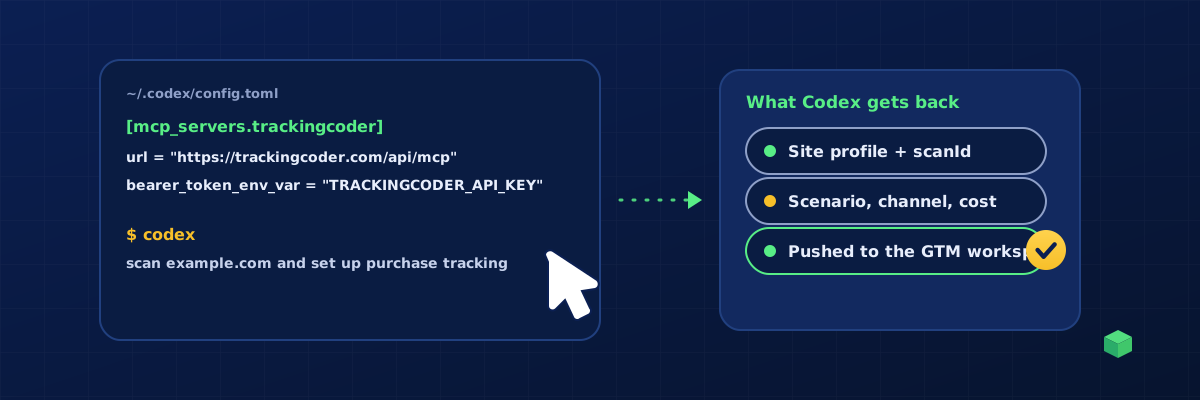
Yes. Codex can set up your website tracking once it can call a tracking tool. OpenAI's Codex CLI and IDE extension support MCP servers, so one entry in its config file connects it to TrackingCoder's MCP server. After that, Codex scans your site, proposes the events, asks you to approve the credits, generates the tracking and pushes it into your Google Tag Manager workspace for you to preview and publish. Here is the whole flow, including the config and the prompts.
What Codex gets, and what it does not
Ten tools. list_scenarios, get_credits, list_gtm_workspaces and get_monitoring read the catalog, your balance, your GTM containers and your live monitoring data. scan_site, detect_tracking and check_consent are free diagnostics. generate_tracking produces the tags, triggers and variables for one event on one channel, spends credits, and only works with an explicit confirm flag after you have approved the cost. push_to_gtm places a generation in your GTM workspace as unpublished changes, also behind a confirmation. export_report produces a client report or a consent report as a 24-hour link.
Codex cannot publish a GTM version, buy credits, change billing, manage keys or your team, or read the IDs in your vault. Those are deliberately kept in the app.
Before you start
- A TrackingCoder account on TC Pro, in a paid month. The free trial does not include API access.
- Google Tag Manager on the site, and your IDs: GA4 (G-…), Google Ads (AW-… plus label), Meta Pixel, LinkedIn or Microsoft UET as needed.
- The Codex CLI installed and signed in, or the Codex extension in your editor.
Step 1: create an API key
Go to Account, API keys, name the key ("Codex on the work laptop") and copy it when it is shown. It begins with tc_live_. Keys can be revoked at any time.
Step 2: keep the key out of the chat
Codex reads bearer tokens from environment variables, which is the right place for a secret. Add this to your shell profile (~/.zshrc, ~/.bashrc, or the PowerShell profile on Windows) and open a new terminal:
export TRACKINGCODER_API_KEY="tc_live_YOUR_KEY"Step 3: add the server to Codex
Open ~/.codex/config.toml and add:
[mcp_servers.trackingcoder]
url = "https://trackingcoder.com/api/mcp"
bearer_token_env_var = "TRACKINGCODER_API_KEY"
Recent Codex versions can write the same entry for you:
codex mcp add trackingcoder --url https://trackingcoder.com/api/mcp --bearer-token-env-var TRACKINGCODER_API_KEYStart Codex and run /mcp to confirm the server is connected and the six tools are listed. The variable must be set in the shell that launches Codex; if the tools are missing, that is the first thing to check.
Step 4: scan the site
Use TrackingCoder to scan https://example.com and summarise what is trackable.
Codex calls scan_site and reports the platform (Shopify, WordPress, Webflow and so on), the form system, the checkout, the pixels already present, and a scanId that is valid for 24 hours. Scanning is free.
Step 5: choose events, approve the cost
List the events worth tracking for an online shop, with the credit cost of each on GA4 and Meta.
Codex reads the catalog and matches it to the scan: Purchase, Add to Cart, Begin Checkout, View Item, Newsletter Signup, each priced per channel. Pick what matters. When you ask it to generate, the server requires Codex to state the scenario, channel, ID and cost and wait for your approval. Only then does it call generate_tracking with confirm: true. A call without the flag is refused, so Codex cannot spend credits by accident, and each key is capped at 50 generations a day.
Approved. Generate Purchase for GA4 with G-ABC123XYZ in container format, with Consent Mode v2, and write the container JSON to tracking/purchase-ga4.json.
Codex runs in a sandbox, so writing the file may prompt for approval depending on your approval mode; that is expected. The result includes the container JSON, the equivalent Custom HTML snippet and direct script, the event name and parameters, the credits charged, the new balance and a generationId for the push.
Step 6: push to Google Tag Manager, or import the file
Push that generation to the Default Workspace of GTM-ABC1234.
With Google connected once in the TrackingCoder app (the Tag Manager permission only), Codex finds the container through list_gtm_workspaces, confirms the target with you and calls push_to_gtm with confirm: true. The tags, triggers and variables arrive as unpublished workspace changes, and Codex returns the workspace link. Nothing goes live.
Without the Google connection, import the file: Admin, Import Container, choose the file and the workspace, then Merge with Rename conflicting tags, triggers and variables. Never Overwrite. The import also becomes unpublished workspace changes.
Step 7: Preview, then publish
Open Preview, complete a test purchase or add an item to the cart, confirm each tag fires once with the right value and transaction ID, then publish. If you run ads, the ad conversion guide covers how to verify each platform received the event.
Prompts that work well with Codex
- "Scan example.com, then check its consent behaviour with TrackingCoder and tell me what fires before consent." Both calls are free.
- "Compare the tracking on example.com and competitor.com." Two
detect_trackingcalls, no credits. - "For the scanId from earlier, generate Form Submission on GA4 and on Google Ads AW-123456789 with label AbCdEfGh. Tell me the total before you do it." Codex must quote the cost and wait.
- "Write a short README in the tracking folder explaining what each container file contains and how to import it." Useful when you hand the files to a developer.
- "How many purchases did example.com record this week, and which traffic sources drove them?" With TC Pro monitoring on the site,
get_monitoringanswers from live data. - "Export the client report for example.com for last month as a PDF."
export_reportreturns a branded report link, valid 24 hours.
Costs and limits
- Generation is usually 1 credit per event per channel, plus 1 per advanced parameter and 1 for Consent Mode v2. The catalog lists every price. Pushes, monitoring questions and reports cost no credits.
- TC Pro includes 10 credits a month and 15% off packs. Credits come from the same pool as the app; what Codex spends appears in your dashboard.
- Per key and per day: 100 scans, 40 consent checks, 50 generations, 30 GTM pushes, 20 report exports; 60 calls a minute. Identical generations within two minutes are not charged twice.
- Every tool call is logged on your account. Keys pause if the subscription lapses and resume when it is paid.
Where TrackingCoder fits
TrackingCoder does the tracking work in this setup: it reads your site, knows how each event should be wired on each channel, and generates the exact GTM configuration. Codex is the hands. The same engine is in the app, where you can start free with 5 credits a month; the API and MCP server come with TC Pro.