Most sites with a cookie banner still track before anyone clicks it. Not because the owners are reckless, but because a banner and the tags behind it are two separate systems, and nothing forces them to agree. The banner says "we use cookies"; Google Tag Manager fires the Meta Pixel on All Pages regardless. The gap is invisible from the front end, and it is exactly what regulators look at first.
This guide shows you how to see that gap yourself in five minutes, how to read the signals that tell you whether Google Consent Mode is doing its job, the four failures we find on most sites, and the fix for each. If you would rather not do it by hand, the free Website Consent Checker runs the whole procedure from the EU and exports the findings as a PDF for your developer.
What "before consent" means, technically
There are three moments on a page load that matter:
- Libraries load. gtm.js, gtag.js, fbevents.js, insight.min.js. Loading a script is not tracking. It becomes tracking when the script sends data or stores something on the device.
- Hits are sent. A request to
google-analytics.com/g/collect,facebook.com/tr,px.ads.linkedin.com/collect,bat.bing.com/action. This is the data leaving the browser. - Cookies are set.
_ga,_gcl_au,_fbp,_uetsid,_hjSession. This is what the ePrivacy rules are about: storing or reading information on the visitor's device.
A compliant setup lets step one happen, and holds steps two and three until the visitor accepts. Google's advanced Consent Mode is the one accepted exception: Google tags send cookieless pings before consent, flagged with gcs=G100, and set no cookies. Everything else that sends or stores before the click is a finding.
The five-minute manual check
1. Start clean. Open an incognito window, or a browser profile you have never used on the site. If the site is geo-targeted, use a VPN exit in the EU, because many banners only appear for European visitors. Do not click anything on the banner yet.
2. Watch the network. Open DevTools, Network tab, and filter for collect, then tr?, then conversion, then bat.bing, then linkedin. Every request that appears before you click is data sent before consent. Click a Google request and look at its query string.
3. Read the Google signals. Two parameters on every Google hit tell you what Consent Mode thinks:
gcs=G100: ad_storage and analytics_storage both denied. A cookieless ping. This is what you want before consent.gcs=G111: both granted. Before a click this means the default is granted, or was set too late, or does not exist.gcs=G101orG110: one granted, one denied. Usually an analytics-only default.gcd=...l...l...l...l: letters that are alllmean Consent Mode was never set.qmeans a denied default with no update yet,ra denied default updated to granted,torua default that was granted from the start.- No
gcsand nogcdat all: an old tag with no Consent Mode.
4. Check the cookies. Application tab, Cookies, your domain. Before the click you should see only session, security and consent-choice cookies. If _ga, _gcl_au, _fbp or a Hotjar, Clarity or UET cookie is already there, a tag ignored the banner.
5. Accept and watch again. Click accept. New Google hits should carry gcs=G111, the held tags should fire, and the cookies should appear now. If nothing changes, the banner's update is not reaching the tags. If the Google hits still say G100, the banner is not calling gtag('consent', 'update', ...) at all.
One more thing to note while you are there: does the first layer of the banner offer a reject button next to accept, with the same size and weight? If rejecting means opening settings and unticking boxes, write that down too. It is the most common finding in the ICO's and CNIL's sweeps.
The automated version
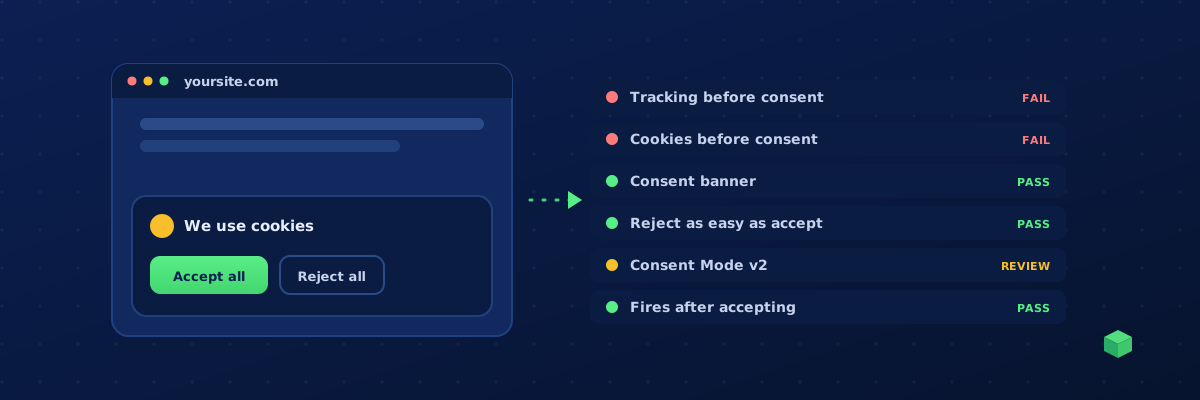
The Website Consent Checker does the same thing, from a fresh headless Chrome in Amsterdam, and adds what you cannot easily see by hand: Google's live consent state (including whether the default was set late), the consent platform in use, and a second pass after clicking the banner's accept button. It runs six checks:
- Tracking before consent: which tools sent data before a choice, and whether they set cookies.
- Cookies before consent: which tracking cookies landed before the click.
- Consent banner: shown, installed but hidden, or absent.
- Reject as easy as accept: a reject option on the first layer.
- Google Consent Mode v2: all four signals denied by default, before Google tags fire.
- Tags fire after accepting: the update reaches the tags.
Export PDF turns the result into a report with the concrete fixes, the Consent Mode snippets, and the evidence tables, which is usually what the developer or the agency needs rather than a screenshot.
The four failures we see most
1. Meta Pixel on All Pages. The GTM tag for the Meta base pixel was created years ago with the All Pages trigger and no consent settings. It fires on load, sends PageView and sets _fbp. GA4 on the same site is often fine, because Google tags read Consent Mode on their own. Meta, LinkedIn, Microsoft UET, TikTok and Pinterest do not. This one failure accounts for most "tracking before consent" results.
2. Consent default set too late. The default is pushed by a plugin or a script that runs after the GTM snippet, so the first hits go out with G111 and Google's runtime marks the default as late. The fix is ordering, not code: the default has to run before gtm.js or gtag.js loads.
3. Consent Mode v1. Only ad_storage and analytics_storage are set. ad_user_data and ad_personalization, required since March 2024 for EEA traffic, are missing, and Google Ads quietly loses audiences and conversion modelling for European visitors.
4. Reject hidden behind settings. Accept all in green, Settings in grey, and no reject on the first layer. The banner "works" and the tags respect it, but the consent it collects is the kind regulators have been rejecting since 2023.
The fix for each
Non-Google tags. In Google Tag Manager, open the tag, Advanced Settings, Consent Settings, tick "Require additional consent for tag to fire" and add ad_storage, ad_user_data and ad_personalization (analytics_storage for analytics tools). To make the tag fire on the same page after acceptance, add a second trigger on your banner's consent event and set the tag to fire once per page. Tags hard-coded in the theme need to move into GTM or get a consent-aware wrapper.
The Consent Mode default. Put this above the GTM or gtag snippet, in the page head, or use your consent platform's GTM template on the Consent Initialization trigger:
<script>
  window.dataLayer = window.dataLayer || [];
  function gtag(){ dataLayer.push(arguments); }
  gtag('consent', 'default', {
    ad_storage: 'denied',
    ad_user_data: 'denied',
    ad_personalization: 'denied',
    analytics_storage: 'denied',
    functionality_storage: 'granted',
    security_storage: 'granted',
    wait_for_update: 500
  });
</script>
The update. When the visitor accepts, the banner must call gtag('consent', 'update', {...granted}) with all four signals. Every mainstream consent platform has a "Google Consent Mode" setting that does this; it is usually off by default.
The reject button. Add "Reject all" or "Only necessary" to the first layer with the same prominence as accept. In most platforms it is a single setting.
After the fix
Run the check again on the home page and on the pages that matter most: checkout, forms, landing pages. Tags and embeds differ per page, and a YouTube embed on the About page can set cookies that the home page never shows. Then open GTM Preview, accept the banner, and confirm the consent update event appears and the gated tags fire on it.
If you are generating new tracking with TrackingCoder, tick Consent Mode v2 in the wizard: the generated container carries the consent requirement on every tag, so the Meta, LinkedIn and Microsoft tags wait for the visitor's choice from day one, and GA4 and Google Ads send cookieless pings until then. Then run the checker once more, export the PDF, and keep it with your records.