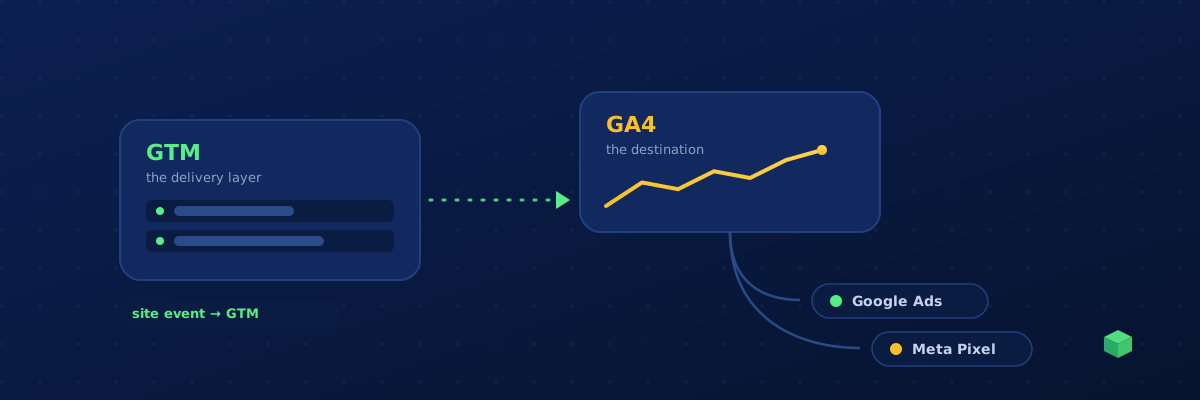
"GA4 vs Google Tag Manager" is one of the most-searched tracking questions - and it's the wrong comparison. They're not competitors. It's like asking "email vs your inbox": one is the thing, the other is how it gets delivered. Once that clicks, the rest of your tracking setup makes a lot more sense.
The one-sentence answer
Google Analytics 4 is where your data goes. Google Tag Manager is how it gets there. GA4 collects, stores and reports your website data - it's the destination. GTM is a container that lives on your site and fires tracking code at the right moments - it's the delivery mechanism. Most websites use both, doing different jobs.
A simple analogy
Think of your website's tracking like plumbing. GTM is the network of pipes and valves - it decides what flows, from where, and when (this click, that form, this page). GA4 is the meter and the dashboard at the end of the pipe - it measures what arrived and shows you the readings. GTM can also send the same flow to other meters at once: Google Ads, Meta, LinkedIn. GA4 just happens to be the most common destination.
Side by side
| Google Analytics 4 (GA4) | Google Tag Manager (GTM) | |
|---|---|---|
| What it is | An analytics product | A tag management system |
| Its job | Collect, store & report data | Deliver & fire tracking code |
| Where it sits | Destination (the warehouse) | On your site (the delivery layer) |
| Gives you reports? | Yes - audiences, events, funnels | No - it holds no data of its own |
| Can send to other tools? | No - it's a single destination | Yes - Meta, Google Ads, LinkedIn, etc. |
| Edit tracking without code? | Limited | Yes - that's the whole point |
How they actually work together
On a typical site, GTM is the single container installed on every page. When a visitor does something - loads a page, clicks a call button, submits a form, completes a purchase - GTM detects it and fires the relevant tags. One of those tags sends the event to GA4. Others can send the same event to Google Ads and Meta simultaneously.
Do you actually need both?
Here's the honest decision:
- You always need an analytics destination. For most sites that's GA4. Without it, you have no reports.
- You can skip GTM if your needs are tiny. A brochure site that only cares about page views can install GA4's gtag.js snippet directly and be done. See the GA4 event tracking guide for what that looks like.
- You'll want GTM the moment you track real conversions. Button clicks, form submissions, calls, purchases, plus Meta and Google Ads tags - managing all of that in raw site code means a developer deploy for every change. GTM turns each change into a few clicks. Our GTM for beginners guide walks through the setup.
In practice, anyone running paid ads or tracking more than page views ends up using both - and that's the recommended setup, not a redundancy.
Install order: GTM first
If you're starting fresh, install GTM first and then deploy GA4 through GTM (a single GA4 Configuration tag). Do it this way and every future tag - GA4 events, Google Ads conversions, the Meta Pixel - lives in one container you manage without touching site code again. It also makes Consent Mode v2 far easier to apply consistently across every tag. Install GA4 directly first and you'll just end up migrating it into GTM later.
Where TrackingCoder fits
This is exactly the gap TrackingCoder closes. You don't write GTM tags or GA4 events by hand: enter your site URL, pick what you want to track, and TrackingCoder generates a GTM container with the GA4 events (and Google Ads / Meta tags) already wired and correctly triggered for your specific CMS. One click adds everything to your GTM workspace (manual import is also available), you review and publish, and both halves - the delivery and the destination - are set up correctly together. For monitoring after launch, TC Pro watches the events flowing into GA4 so you know they keep firing.