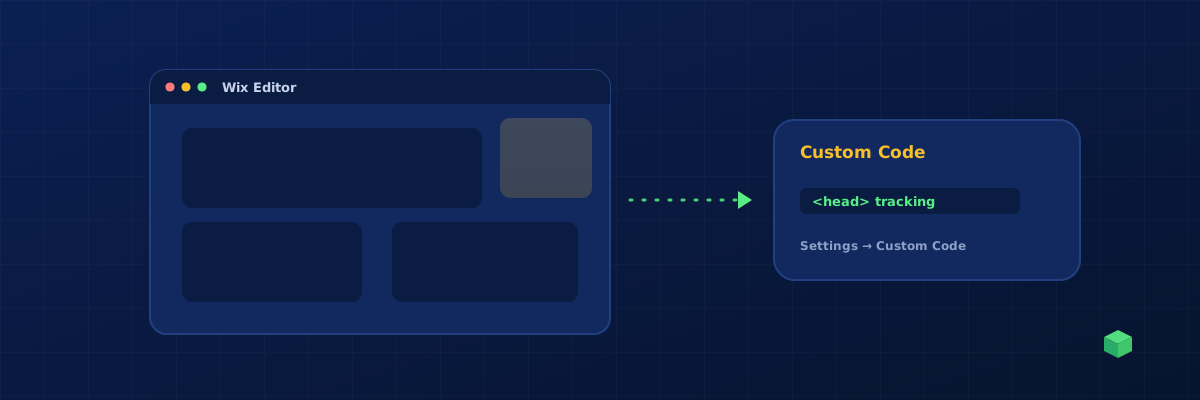
Wix is one of the easiest website builders to start with, and one of the trickiest when it comes to tracking. The reason: Wix gates custom code behind paid plans, and even on paid plans, the way you add scripts is different from any other platform. This guide walks you through the whole process - and tells you what to do if you're stuck on the Free plan where custom code isn't allowed at all.
Does Your Wix Plan Allow Custom Code?
This is the first thing to check. Wix has several plans, and only some of them let you add custom HTML and JavaScript:
| Plan | Custom Code Allowed? |
|---|---|
| Free | No |
| Light | No |
| Core | Yes |
| Business | Yes |
| Business Elite | Yes |
If you're on Free or Light: you cannot install Google Tag Manager, Google Analytics, the Meta Pixel, or any other tracking script. Wix doesn't allow it. You'll need to either upgrade your plan, use Wix's built-in (limited) analytics, or migrate to a platform that allows custom code on the free tier - WordPress.com, Webflow, or Ghost are common alternatives.
Step 1: Get Your Google Tag Manager Snippet
Create a free account at tagmanager.google.com. After creating a container for your website, you'll see two code snippets - one labelled for the <head> and one for right after the opening <body>.
Wix has a quirk worth knowing: it doesn't let you inject code right after the opening <body> tag. Only the <head> snippet will work. The <body> snippet is only used as a fallback for users with JavaScript disabled, so missing it doesn't break tracking - just be aware some tracking guides will tell you "you need both", which isn't true on Wix.
Step 2: Add the GTM Snippet to Wix
- Open your Wix dashboard at wix.com
- Click Settings in the left sidebar
- Scroll down to Advanced → click Custom Code
- Click + Add Custom Code
- Paste your GTM
<head>snippet into the code field - Set Add Code to Pages to All pages
- Set Place Code in to Head
- Give it a name like "Google Tag Manager" so you remember what it is
- Click Apply
That's it. Within 5 minutes, GTM is live on every page of your site. You can verify by visiting your site, opening Chrome DevTools (F12), and typing dataLayer in the console - you should see an array, which means GTM is loaded.
Step 3: Add GA4 Inside GTM
Now that GTM is on your site, add GA4 as a tag inside GTM (not directly into Wix). In your GTM workspace:
- Click Tags → New
- Click Tag Configuration → choose Google Tag
- Paste your GA4 Measurement ID (the one starting with
G-) - Click Triggering → choose All Pages
- Save it with a name like "GA4 Config"
- Click Submit in the top right → add a version name → click Publish
You're done. GA4 will start receiving pageviews from your Wix site within minutes.
Tracking Wix Form Submissions
Wix's native forms (and the Wix Forms app) submit data to Wix's backend, not to a regular HTTP endpoint. This makes them harder to track than standard HTML forms. You can't just listen for a generic submit event because Wix prevents the browser default and handles everything via JavaScript.
The reliable way to track Wix form submissions is to use a MutationObserver that watches for the success message appearing in the DOM. When Wix shows the "Thanks, we'll be in touch" message after a successful submit, the observer fires and we send the event to GA4. TrackingCoder generates this code automatically when you scan a Wix site and pick the Form Submission scenario.
Tracking Wix Stores Add-to-Cart and Purchases
If you're using Wix Stores (the ecommerce add-on), tracking gets harder. Wix Stores uses its own checkout flow that runs on subdomains in some cases, which can break cross-domain tracking. The add-to-cart action triggers a Wix Stores API call, not a standard form submission.
For Wix Stores tracking, you have two options:
- Use Wix's built-in Marketing Integrations panel. Wix has direct integrations with Google Analytics and the Meta Pixel that handle the ecommerce events for you. These work, but they're limited to standard events with no customisation.
- Use TrackingCoder + GTM. We generate JavaScript that hooks into the Wix Stores DOM events for add-to-cart and purchase, sending properly-formatted events to GA4 and Meta Pixel via your GTM container.
What If You're on Wix Free?
You have three realistic options:
- Upgrade to a paid Wix plan. The Light plan still doesn't allow custom code, so you need at least the Core plan. This is the easiest path if you're committed to Wix.
- Use Wix's built-in analytics. Free Wix sites get basic visit and traffic data inside the Wix dashboard. It's limited (no custom events, no funnel analysis, no integration with ad platforms) but it's something.
- Migrate to a different platform. WordPress.com (also free), Ghost, or Webflow Starter all allow at least some level of custom code on their free tiers. WordPress.com is the most popular alternative.
If you've already spent money on TrackingCoder credits trying to track a Wix Free site and hit this wall, you can request a credit refund directly from your dashboard.