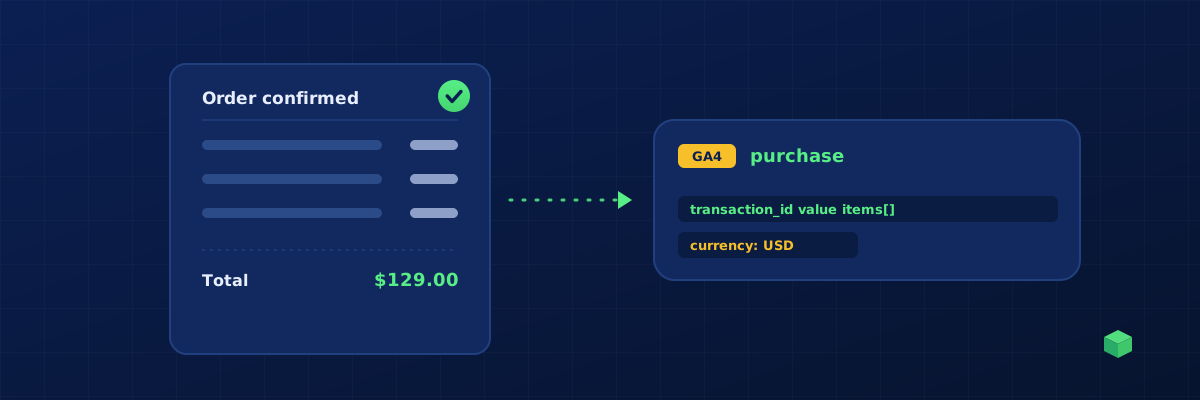
Purchase tracking is the event that pays for everything. It's how you measure ROAS, optimise ad campaigns for revenue, attribute orders to traffic sources, and decide which products to feature. Get it wrong and every downstream decision is based on bad numbers.
This guide covers how to track purchases correctly across the major ecommerce platforms, why your reported revenue almost never matches your backend exactly, and how to keep the discrepancy under 5%.
The GA4 purchase Event
GA4 has a standard recommended event for purchases. Using it correctly means your data populates the Monetisation reports, feeds Google Ads conversion tracking, and integrates with Looker Studio without custom field mapping.
The required parameters are:
- transaction_id - unique order ID. Required for deduplication.
- currency - ISO code (USD, EUR, GBP)
- value - total order value, including or excluding tax/shipping depending on your accounting
- items - array of products in the order
Optional but commonly used:
- tax - tax portion of the order
- shipping - shipping portion
- coupon - discount code applied
- affiliation - store name (useful if you have multiple stores in one GA4 property)
Where Does the Purchase Event Fire?
On the order confirmation page (also called the thank-you page or order received page) - the page the user lands on after completing payment. Not when the user clicks "Place order". Not when the payment provider returns. On the actual confirmation page that the user sees with the order summary.
This matters because:
- Some payments take seconds to process. The user clicks "Place order" → payment processor confirms → user lands on confirmation. If you fire on the click, you might count failed payments.
- Browser back button. If the user navigates back from the confirmation page and forward again, you'll fire the event twice if you're not careful with deduplication.
Where to Get the Order Data
The order confirmation page has all the information you need, but how to access it depends on the platform:
| Platform | Where to find order data |
|---|---|
| Shopify | Shopify Plus: Customer Events. Standard: read from window.Shopify.checkout on the order status page (limited fields available). |
| WooCommerce | Order ID and totals are in the page DOM as elements with class order_details. Best to use the WooCommerce woocommerce_thankyou server-side hook with a Custom HTML tag. |
| BigCommerce | BCData.order on the order confirmation page contains everything: ID, total, currency, line items. |
| Magento 2 | Read from the order success page DOM, or hook into the Magento dataLayer if your theme provides one. |
| WooCommerce w/ GTM4WP plugin | The plugin populates a clean dataLayer with all the data. Read from there. |
Deduplication: Stopping Double-Tracked Purchases
Double-tracked purchases are one of the most common ecommerce tracking bugs. They happen because:
- The user refreshes the order confirmation page
- The user uses the back button
- The user shares the confirmation URL with someone
- You have two tracking implementations (e.g., a plugin and a manual GTM tag) firing on the same event
The solution is to deduplicate by transaction_id. Before firing the purchase event, store the transaction ID in localStorage. On every subsequent visit to the confirmation page, check if the ID is already stored - if yes, skip the event. This blocks all four problems above.
For the multi-implementation problem, the better fix is to disable one of the implementations entirely. Pick one method and use it everywhere.
Why Your GA4 Revenue Doesn't Match Your Store Backend
Even with perfect tracking, GA4 revenue will be slightly lower than your store backend. Expect a 3-8% gap. The reasons:
- Ad blockers. Around 5-15% of visitors block GA4 entirely. Their purchases are recorded by your store but not by GA4.
- iOS Safari Intelligent Tracking Prevention. Some sessions get truncated, and the purchase event happens after the tracking cookie expires.
- Cookie consent. Users who decline cookies don't have their purchases tracked.
- JavaScript errors. If something on the order confirmation page breaks JavaScript before your tracking fires, the event is lost.
- Refunds. Refunded orders show up as full revenue in GA4 unless you explicitly fire a refund event. Your backend reports net revenue.
If your gap is over 10%, something is wrong - investigate. If it's between 3% and 8%, that's normal and you should treat GA4 as directionally accurate, not as your source of truth for accounting.
Sending to Multiple Channels
For ecommerce, you almost always want purchase tracking on three platforms:
- GA4: the
purchaseevent with full item details - Meta Pixel: the standard
Purchaseevent withvalueandcurrency - Google Ads: a Conversion action with the order value as the conversion value (this is what enables Google Ads Smart Bidding by ROAS)
All three should fire from the same trigger on the order confirmation page. With GTM, set up one URL-based trigger for the confirmation page, then create three tags that fire on it - one per platform.
Server-Side Tracking: When to Bother
Server-side tracking sends the purchase event from your backend (the place that knows the order is real and successful) directly to GA4 and Meta via their respective APIs. The advantages: it bypasses ad blockers, it can't be tampered with, it doesn't depend on JavaScript loading correctly.
The downsides: it's significantly more complex to set up, it requires server-side code, and it doesn't replace client-side tracking - you still need both because some events (like which UTM parameters brought the user) only exist on the client.
Server-side tracking is worth it for stores doing more than ~$50K/month in revenue where a 5-10% data gap means meaningful budget allocation errors. For smaller stores, client-side tracking is good enough to optimise on.
Skip the Setup
Purchase tracking is the highest-stakes event you'll set up. TrackingCoder generates GTM containers with the right detection method for each platform, the right item array format, deduplication via localStorage, and parallel tags for GA4, Meta, and Google Ads. The whole thing in one import.