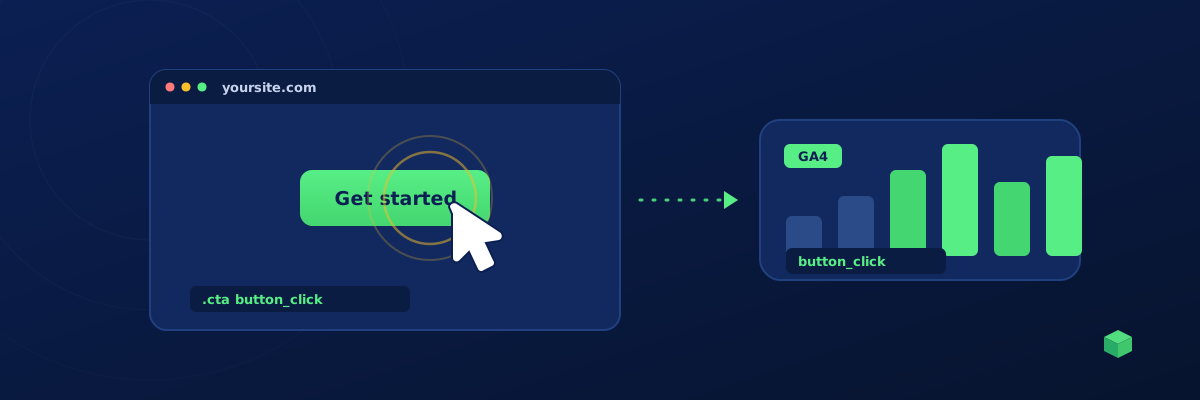
Button click tracking sounds simple. You'd think GA4 would just handle it. It doesn't - at least not the way you need. This guide explains why GA4's built-in click tracking falls short, and shows you the right way to track button clicks so the data is actually useful for marketing decisions.
Why GA4's Default Click Tracking Isn't Enough
GA4 has a feature called Enhanced Measurement that automatically tracks "outbound clicks" - links that go to a different domain. That's it. Internal navigation clicks, button clicks (not links), call-to-action clicks, and add-to-cart clicks are all not tracked by default.
Even the outbound click tracking is limited: GA4 records that some outbound click happened, but not which button or link. If you want to know that 142 people clicked the "Get a quote" button on your homepage versus 38 who clicked it in the footer, you need custom event tracking.
What You Actually Want to Track
For most websites, you care about three categories of clicks:
- Primary CTAs: "Get a quote", "Start free trial", "Buy now", "Contact us". These are the buttons that matter for conversions.
- Secondary CTAs: "Learn more", "Watch demo", "See pricing". These signal interest but not commitment.
- Navigation actions: Sometimes you want to know which sections of your site users explore. Tracking nav menu clicks tells you that.
For each click you track, you want to know: which button was clicked, where it appeared on the page (header, hero, footer), and what page the user was on when they clicked.
The Event Name: Use a Standard Format
Pick a single event name and use parameters to differentiate. For example, use the event name cta_click with a parameter cta_label set to "Get a quote", "Start trial", etc. Don't create a separate event name for every button - it makes your reports messy and harder to analyse.
Here's the schema we recommend:
- event_name:
cta_click - cta_label: The text on the button (e.g., "Book a demo")
- cta_location: Where on the page it appeared (e.g., "hero", "footer", "pricing_section")
- page_path: Captured automatically from
window.location.pathname - page_title: Captured automatically from
document.title
This lets you build useful reports: total CTA clicks per page, conversion rate by CTA label, which page sections drive the most engagement.
The Challenge: Getting the Selector Right
To fire a tracking event when a specific button is clicked, you need a JavaScript selector that matches that button reliably. This is harder than it sounds. Buttons in modern websites are often:
- Wrapped in multiple
divlayers by page builders - Given dynamic class names like
elementor-button-1234that change on every theme update - Built with React components where the rendered class is a hash like
Button_button__a1b2c3 - Identical to other buttons elsewhere on the same page
The most stable selector strategy, in order of preference:
- HTML
idattribute if it's a real ID (not auto-generated likeelementor-element-12345). IDs are unique and stable. - Anchor href for buttons that are links.
a[href="/contact"]is rock-solid. - ARIA label if present.
[aria-label="Open menu"]is stable and accessibility-friendly. - Tag + visible text as a last resort.
button:contains("Get a quote")works if the text is unique on the page.
Avoid using class-based selectors when the classes look auto-generated, and avoid builder-specific data attributes like data-id="abc123" unless you have nothing else, because page builders regenerate these every time you republish.
Setting It Up in GTM
The cleanest way to fire a button click event is using GTM's native Click trigger:
- In GTM, go to Triggers → New → Click - All Elements
- Choose Some Clicks and add filters: e.g., "Click URL contains
/contact", or "Click Text equalsGet a quote", or "Click Classes containsyour-stable-class" - Save the trigger
- Create a new GA4 Event tag, set the event name to
cta_click - Add event parameters:
cta_label = {{Click Text}},cta_location = "your_value" - Set the trigger to the one you just created
- Publish the GTM container
The advantage of using GTM's native Click trigger over a custom HTML JavaScript snippet is that it doesn't require any code. The trigger filters do all the work. It's also faster - there's no JavaScript listener attached to every element on the page.
Verifying It Works
Use GTM Preview mode. Click Preview in the top right of GTM, enter your URL, and a debug tab opens. Click the button you want to track. In the debug panel, you should see your tag listed under Tags Fired. If it's under Tags Not Fired, click it and look at which trigger condition failed.
Then check GA4 Realtime: open Reports → Realtime, and your cta_click event should appear within 30 seconds with the right parameters.
Skip the Manual Work
TrackingCoder automates this entire process. Scan your site, click "Pick element visually", click the button you want to track, and it generates a GTM container with the right Click trigger, the right filters, and the GA4 event tag - all configured for the most stable selector strategy. Most users have working button click tracking in under 2 minutes.