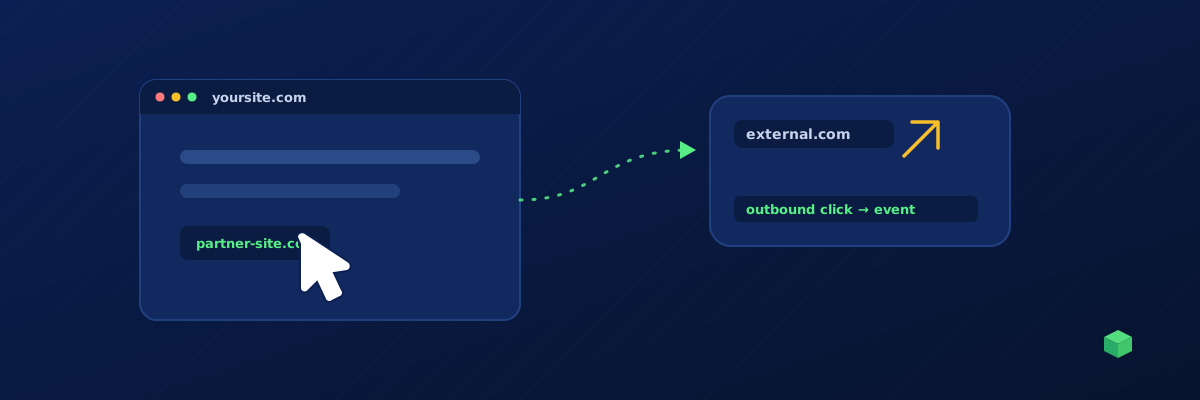
Outbound link tracking - measuring clicks on links that take users to a different domain - is one of the few things GA4 actually tracks automatically. The catch: it tracks them poorly. This guide shows you what you actually get from default GA4 tracking, why it's not enough, and how to set up proper outbound click tracking that gives you usable data.
What GA4 Tracks by Default
GA4 has a feature called Enhanced Measurement, which is enabled by default for new properties. One of the things it auto-tracks is "outbound clicks" - clicks on any anchor tag whose href points to a domain different from your own.
When this fires, GA4 records an event called click with these parameters:
link_url- the destination URLlink_domain- just the domain partlink_text- the visible text of the linkoutbound- set totrue
That sounds useful, but there are some serious limitations.
Why Default Tracking Isn't Enough
- It only tracks anchor tags. If your "external link" is actually a button with a JavaScript redirect, it won't be tracked.
- It doesn't distinguish important links from noise. A user clicking a footer credit ("Powered by WordPress") generates the same event as someone clicking your affiliate partner link in the hero section. You can filter by URL after the fact, but it's messy.
- It lumps everything into one event name. Every outbound click is named
click. If you want to differentiate "affiliate clicks" from "social media clicks" from "partner referral clicks", you can't - they all look the same in reports. - It doesn't fire on middle-click or right-click → open in new tab. About 30% of link clicks happen this way and are lost.
What Better Tracking Looks Like
Custom outbound click tracking lets you:
- Use a meaningful event name like
affiliate_clickorpartner_link_clickinstead of the genericclick - Capture the category of the link (affiliate, social, partner, source citation, etc.) as a parameter
- Fire on middle-click and right-click using mousedown events instead of click events
- Include context like "this link was in the hero section on the homepage" via custom parameters
Setting It Up in GTM
The simplest implementation uses GTM's built-in Just Links trigger:
- Go to GTM Triggers → New → Click - Just Links
- Choose Some Link Clicks
- Add a filter: Click URL → does not contain → yourdomain.com
- Save the trigger
- Create a new GA4 Event tag
- Event name:
outbound_click(or whatever you want) - Add parameters:
link_url = {{Click URL}},link_text = {{Click Text}},link_domain= a custom JavaScript variable that extracts the hostname from{{Click URL}} - Set the trigger you just created
- Publish
The advantage of Just Links over All Elements is that it has built-in middle-click handling. When a user middle-clicks a link to open it in a new tab, GTM captures the event and lets your tag fire before the new tab opens.
Categorising Outbound Links
If you want to separate "affiliate clicks" from "partner clicks" from random outbound clicks, use a Lookup Table variable in GTM. Set up a variable that takes the click URL as input and returns a category based on the domain:
amazon.com,amzn.to→ "affiliate"twitter.com,linkedin.com,facebook.com→ "social"youtube.com,youtu.be→ "video"- (default) → "other"
Then add this variable as a parameter on your event. Now you can filter your GA4 reports by link category.
Handling JavaScript-Based Redirects
Some "links" aren't actually anchor tags - they're buttons or divs with a JavaScript click handler that does window.location.href = "...". These are common in JavaScript-heavy single-page apps. GA4's outbound click tracking won't catch them at all.
For these, you need a different approach: listen for clicks on those specific elements and fire your event manually. The selector strategy is the same as for button click tracking - find the most stable selector for the element, then add a GTM Click trigger with that selector as the filter.
Testing It
Open GTM Preview mode, navigate to your site, and middle-click an outbound link. In the debug panel, your tag should appear under "Tags Fired". Then in GA4 Realtime, you should see the event with the right URL and link text.
For a stress test, click an outbound link with each of: left click, middle click, right-click → "Open in new tab", and Cmd/Ctrl + click. All four should fire your event. If any of them don't, you're using the wrong trigger type - switch from Click - All Elements to Click - Just Links.