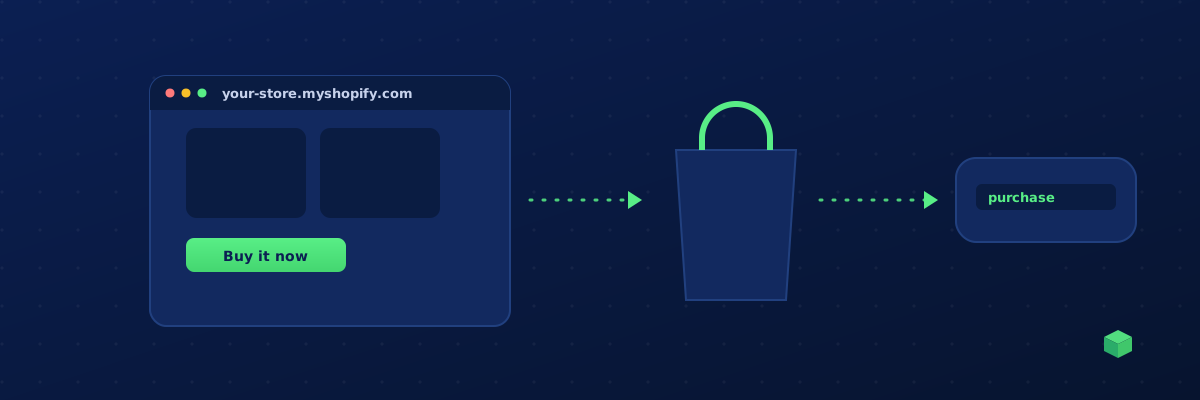
Shopify gives you a thriving store and a beautiful checkout, but it's surprisingly bad at one thing: tracking. Out of the box, you get basic Shopify Analytics and a Google Analytics integration that's been deprecated for years. If you want proper conversion tracking - the kind that actually feeds Meta Ads, Google Ads, and GA4 with the data they need to optimise - you have to set it up yourself.
This guide walks you through the cleanest way to do it: install Google Tag Manager once, then use GTM to manage every tracking tag from a single place. No apps, no theme hacks, no broken checkouts.
Why Tag Manager First?
Most Shopify tracking guides tell you to paste GA4 directly into theme.liquid, install the Meta Pixel via the Facebook channel, and set up Google Ads via the Google channel. Three different installation methods, three places to update when something changes, three things to debug when tracking breaks.
Google Tag Manager fixes this. You install GTM once, then add GA4, Meta Pixel, Google Ads, LinkedIn Insight, and any other tracking script as tags inside GTM. When you need to add a new tracking pixel, you do it in GTM. When you need to update an event, you do it in GTM. Your Shopify theme stays clean.
Step 1: Install Google Tag Manager on Shopify
Create a GTM account at tagmanager.google.com if you don't have one. You'll get two snippets: one for the <head> and one for right after the opening <body>.
Now in Shopify:
- Go to Online Store → Themes
- Find your active theme → click the ... menu → Edit code
- In the file list on the left, open
layout/theme.liquid - Find the opening
<head>tag (near the top) and paste the first GTM snippet immediately after it - Find the opening
<body>tag and paste the second snippet immediately after it - Click Save
Heads up: Shopify's checkout pages run on a separate template that you can't edit on standard plans. This means GTM (and any tags inside it) won't fire on the checkout, order status, or thank-you pages unless you're on Shopify Plus. For those pages, Shopify Plus has a dedicated Customer Events feature you should use instead.
Step 2: Add GA4 to Your GTM Container
Inside GTM, click Tags → New → Tag Configuration → Google Tag. Enter your GA4 Measurement ID (the one starting with G-) and set the trigger to All Pages. Save it.
That's it for the base GA4 install. Pageviews will start flowing within minutes after you publish the GTM container. To verify, open your site in one tab and GA4's Realtime report in another - you should see your visit appear within 30 seconds.
Step 3: Track Add-to-Cart, Begin Checkout and Purchase
The base GA4 install gives you pageviews. The events that matter for ecommerce - add to cart, begin checkout, purchase - need extra setup. Each one requires JavaScript that detects the action on your specific Shopify theme.
The challenge: every Shopify theme handles these actions differently. A Dawn-based theme uses fetch() to add items to the cart; an older Debut theme uses jQuery; a custom theme might use a Buy Now button that bypasses the cart entirely. Writing tracking code that handles all of these is several hundred lines of JavaScript with a lot of edge cases.
This is exactly what TrackingCoder generates for you. Scan your store, pick "Add to Cart", and it produces a GTM container that handles every Shopify cart submission method - form submits, fetch AJAX, XHR AJAX, and Dynamic Checkout (Buy Now) buttons - in a single import.
Step 4: Add the Meta Pixel
You can use Shopify's built-in Facebook channel to install the Meta Pixel, but it has limitations: it only fires standard events Shopify defines, you can't customise parameters, and it sometimes double-fires when combined with manual installations.
The cleaner approach is to add the Meta Pixel as a tag inside GTM. This gives you full control over what fires and when. TrackingCoder generates this automatically - when you select "Meta Ads" as a channel, the GTM container includes both the base Meta Pixel script and the event tag, all configured with your Pixel ID.
Step 5: Verify Everything Works
Before going live with your tracking, use GTM's Preview mode. Click Preview in the top right of GTM, enter your store URL, and a new tab opens with a Tag Assistant panel at the bottom. Trigger each event you care about - add a product to your cart, start checkout, complete a test purchase - and verify the corresponding tag fires.
For Meta Pixel verification, use Meta's Test Events tool in Events Manager. For Google Ads, use the Google Tag Assistant Chrome extension. Each platform has its own verification dashboard, and they all process data at slightly different speeds - GA4 is the fastest, Google Ads can take up to 24 hours.
Common Mistakes Shopify Stores Make
- Double-tracking purchases. If you have GA4 installed via both Shopify's native integration and your custom GTM tag, every purchase counts twice. Pick one method and disable the other.
- Tracking purchases on the cart page. Purchases happen on the order status page, not the cart. If your purchase event fires when someone clicks "Check out" instead of when they actually pay, your conversion data is meaningless.
- Missing the Dynamic Checkout buttons. Shopify's Buy Now / Shop Pay buttons skip the cart entirely. Tracking that only listens for cart form submissions will miss every Buy Now purchase.
- Forgetting to publish the GTM container. You can save tags in GTM all day long, but until you click Submit and Publish in the top right, nothing is live on your site.
Faster Path: Use TrackingCoder
Setting all of this up manually takes a couple of hours and a lot of theme inspection. TrackingCoder scans your Shopify store, detects everything (including which version of Shopify, which theme, whether you have Shop Pay enabled), and generates a single GTM container file you import in one click. The container includes base scripts for every channel you select, conversion tags for every event you want to track, and is built specifically for Shopify's quirks.
Most users have working tracking within 5 minutes of signing up, even on their first time using GTM.