It happens to almost every GTM user at some point: you're importing a container - maybe one you generated with TrackingCoder, or one a colleague sent you - and you click Overwrite instead of Merge. The dialog snaps shut, your tags vanish, and you suddenly realise you just nuked weeks (or months) of work.
Take a breath. Nothing is permanently lost. GTM keeps a full version history of every published container, and restoring is a 5-minute job. Here's exactly what to do.
Step 1: Open Versions
In your GTM container, look at the left sidebar. Click Versions. You'll see a chronological list of every published version, newest at the top. Each row shows the version name, who published it, and when.
Step 2: Find the version from before the overwrite
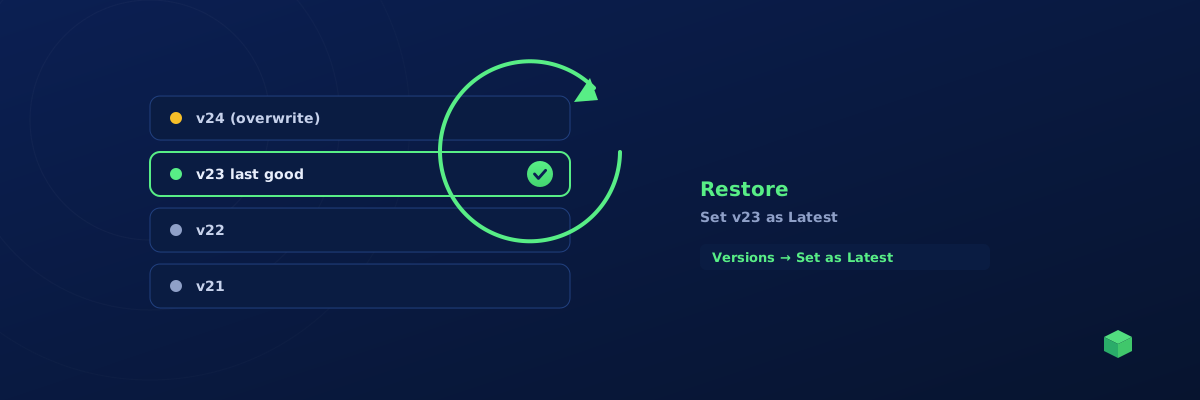
The latest version (top of the list) is the one your overwrite published. The version DIRECTLY UNDER it is the last good state - the one you want to restore.
If you've been publishing frequently, scroll until you find the last version that contained the tags you lost. The "Notes" column on each version is a useful breadcrumb.
Step 3: Open the version and verify
Click the version name to open it. GTM shows you a snapshot: every tag, trigger, and variable that existed at that point. Confirm the tags you lost are present.
If you want extra reassurance, click Preview in the top-right corner of the version detail page. GTM will run Preview mode using that version's configuration, so you can load your site and watch the tags fire as they used to.
Step 4: Set as Latest
In the top-right of the version detail page, click the three-dot menu (⋮) and select Set as Latest. This pulls that version back into your workspace, replacing whatever's currently there.
You'll see a confirmation dialog. Read it carefully - it'll mention that your current workspace changes will be discarded. If you have unsaved work in the workspace that you DO want to keep, save those changes elsewhere first (e.g., note down the tag names and re-create them after).
Step 5: Submit and Publish
Setting as Latest only updates your workspace. The live container is still the bad overwrite. Click Submit in the top-right, give the version a name like "Restored v23 after accidental overwrite", and Publish.
Within seconds, your live site is back to the previous good state.
How to avoid this next time
The Overwrite vs Merge confusion is a common pitfall. The safest workflow when importing a container:
- Always pick "Merge" unless you genuinely want to replace the entire container. Merge adds the imported tags/triggers/variables to your existing setup; Overwrite replaces everything.
- Use a fresh workspace for the import. Before importing, click Workspaces → New Workspace, name it "Import test", and import there. If anything goes wrong, you can simply delete the workspace.
- Always use Preview mode before Submit. If the merge produced something unexpected, you'll see it in Preview before going live.
What if my last published version is older than I need?
GTM only versions PUBLISHED states. If you had unpublished workspace changes when you did the overwrite, those workspace edits are not in the version history and can't be recovered from the Versions panel.
The only place GTM keeps unpublished workspace state is the workspace itself. If you've already overwritten the workspace AND no version captures the state you need, the changes are unfortunately gone - there's no auto-save / browser cache trick that recovers them.
This is why we always recommend publishing in small increments, and using the workspace's "Notes" field to record what each batch of changes did.